How to Set Up Technology for a Parent Who Doesn’t Trust Technology (A Step-by-Step Guide)

How to Set Up Technology for a Parent Who Doesn’t Trust Technology (A Step-by-Step Guide)

If you’ve tried to help a parent with technology, you’ve probably had the experience of it not going the way you planned.

The device you set up gets abandoned. The app you installed never opens. The phone you upgraded sits in a drawer because the old one, the one with the cracked screen that barely works, is the one they know.

This is not a story about your parent being stubborn. It’s a story about trust, and about how technology needs to be introduced for it to actually stick.

The real problem isn’t the technology

When someone has had repeated bad experiences with technology, been made to feel foolish because they couldn’t figure something out quickly, or watched a device become more complicated with every update, their skepticism is rational. They’re not wrong. Technology is frequently designed for people who already know how to use it, and it often gets harder over time, not easier.

Your job is not to convince your parent that technology is great. It’s to find one specific thing that solves a real problem they already have, and introduce it in a way that makes success more likely than failure.

Success builds trust. One win opens a door that all the explaining in the world won’t.

Start with their need, not your solution

The most common setup mistake is starting with the technology and working backward to a justification for it.

Before you decide what your parent should have, ask a different question: what is the actual problem you want to solve?

Here are the most common answers I hear from adult children:

I can’t reach my parent easily and I worry. I’m concerned about falls, especially when no one is there. My parent is isolated and the phone makes it hard to connect. I’m not sure medications are being taken correctly. My parent is having trouble managing daily tasks.

Each of these has a specific solution. And when the technology you introduce matches a problem your parent already feels, the chance they’ll actually use it is much higher.

Ask your parent what their concerns are, not just yours. If they’re already worried about something, you have a genuine opening. If they don’t feel there’s a problem, adoption will be harder, and that’s worth knowing before you invest time and money.

The four technologies worth prioritizing first

Based on what makes the most practical difference for older adults living at home, these are the ones worth focusing on, in roughly this order.

A phone they can actually use. If your parent has a smartphone but rarely uses it, the issue is almost always settings, not the phone itself. Larger text size, contacts set up with photos, the speakerphone as the default, and a home screen cleared down to four or five frequently used apps can completely transform the experience. Don’t replace the device before you’ve tried adjusting the settings. The phone they already have may be fine.

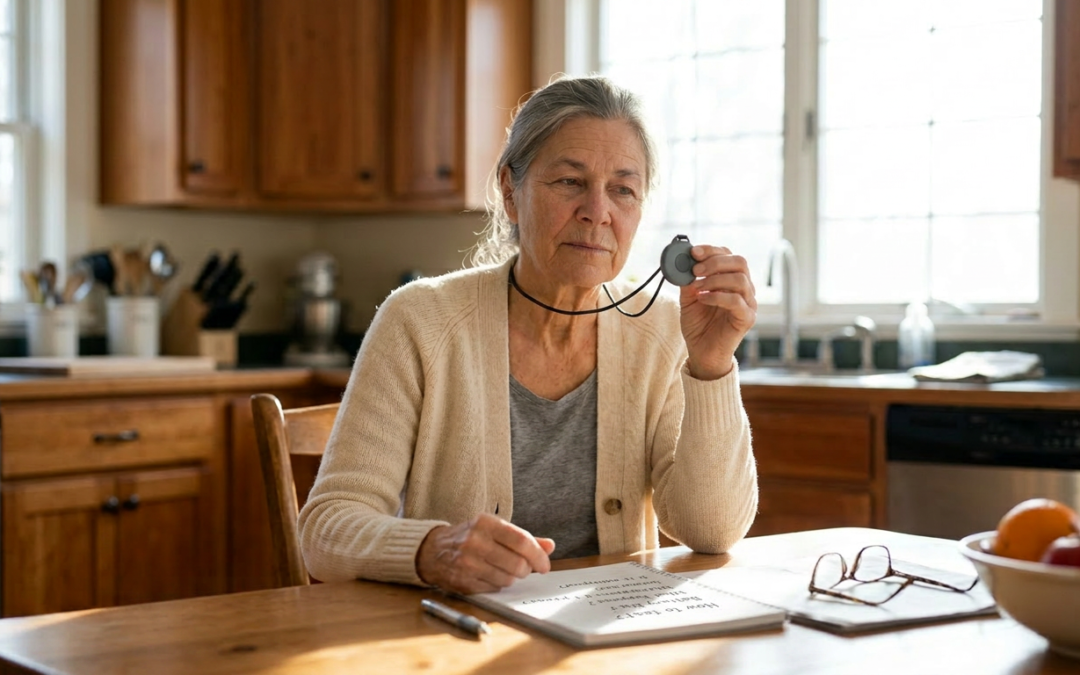
A medical alert device. For someone living alone, this is the single highest-value technology for both safety and your peace of mind. Fall detection, two-way communication, and GPS tracking are now standard features in good systems. The key is matching the device to your parent’s actual habits. Someone who won’t wear a wristband needs a different solution than someone who doesn’t mind one. I’ve written about this in more detail in the article on fall detection.

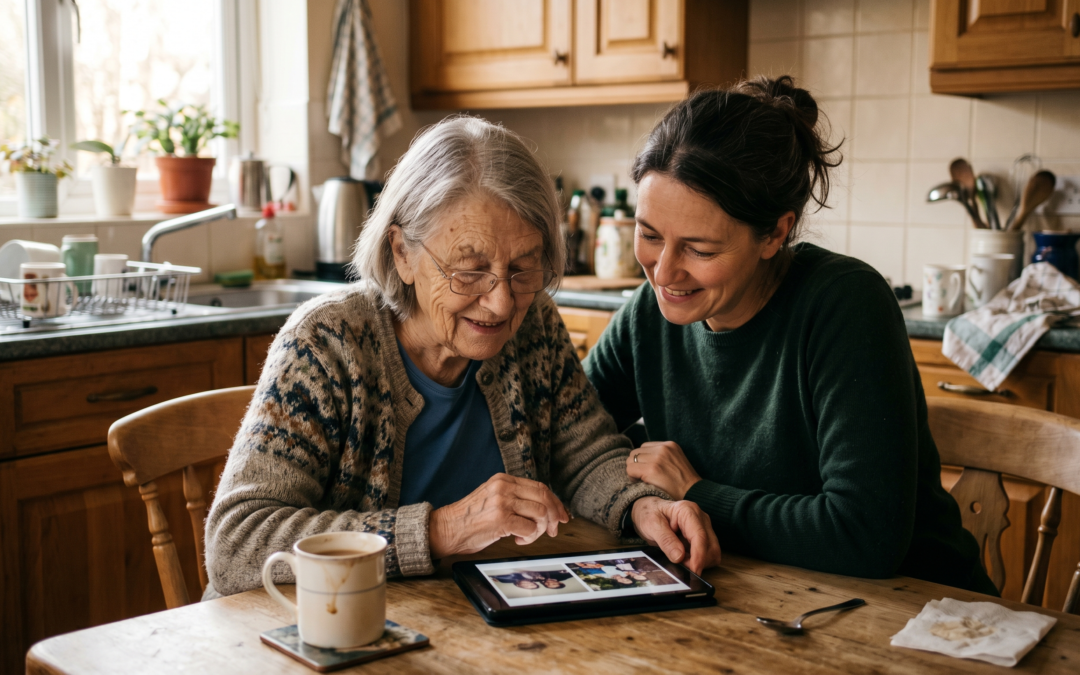
Video calling. Seeing a face changes the experience of staying in touch. Tablets are often easier than smartphones for video calls, because the screen is larger and there’s less to navigate. The best setup for parents new to video calling is a dedicated tablet with a single large button or contact photo they tap to call. Removing steps removes barriers.

A medication reminder. If medication timing is a concern, a simple approach often works best: a weekly pill organizer with a separate alarm, or a basic reminder app on the phone your parent already uses. The more complicated solutions exist, but start with the least amount of new learning required.

How to do the actual setup

The setup itself matters as much as the technology. These details make the difference between a device that gets used and one that gets put in a drawer.

Do the setup when you have unhurried time and your parent is rested. Not during a holiday visit when the day is already full. Not in the last twenty minutes before you have to leave.

Set things up in your parent’s presence, not before they arrive. Walk through each step out loud. Let them do as much as possible, with you watching and guiding, rather than doing it all yourself while they watch. The goal is that they’ve been through each step at least once before you leave.

Leave written instructions. This is not optional, and it’s worth taking the time to do it well. Large print. One step per line. No abbreviations or technical terms. A phone number at the top of the page that they can call if something goes wrong. Put the instructions in a consistent, obvious place near the device.

Before you leave, do a test together. Make a video call. Press the medical alert button (most have a test mode that doesn’t actually place an emergency call). Open the medication reminder. Go through each thing once, successfully, before you go. That moment of success matters.

Setting up remote support

One of the most useful things you can do alongside the device setup is configure your own ability to help remotely.

Most smartphones and tablets have a screen sharing or remote support option. For iPhones and iPads, Screen Time settings give you some visibility. For Android devices, tools like TeamViewer QuickSupport or Google Remote Desktop let you see your parent’s screen with their permission and walk them through a problem without being there in person.

Setting this up during your visit, when you can explain what it is and get consent, means the next time something goes wrong, you have a way to actually help instead of trying to describe a solution over the phone to someone who can’t find the button you’re describing.

The first thirty days

Plan to check in specifically about the technology within the first week. Not to find out if something broke, but to ask: have you used it? Did anything feel confusing?

This follow-up is where most setups succeed or fail. If the device sat unused because of one moment of confusion on day two, you want to catch that before the pattern is set. A quick fix in week one takes five minutes. Re-building motivation three months later is much harder.

If something went wrong, troubleshoot it without frustration. Every “this isn’t working” moment is a chance to solve a problem and add to the trust bank. Approaching it with patience is not just kind, it’s strategic.

When they say they don’t want it

If your parent actively resists a device, don’t push. Reframe it as something for you.

“It would help me worry less” is honest. “I know you’re completely capable, but I’d feel better knowing the button is there if you ever needed it” is honest. This framing works because it’s true, and because it gives your parent the ability to do something for you, rather than accepting help they don’t feel they need.

Some resistance resolves over time. A friend tries something and recommends it. A health event changes the calculation. An article they read lands differently. The goal of the first conversation isn’t agreement. It’s leaving the door open.

If you have siblings involved

If your siblings or other family members are also part of your parent’s support network, share this guide and coordinate your approach. Having different family members independently pushing different technologies creates confusion and resistance. A shared plan, starting with one thing, chosen together, is far more likely to work than competing suggestions from multiple directions.

Take the 3-Minute Assessment

Technology works when it’s introduced with patience, matched to a real need, and supported after the initial setup. That’s the whole plan. One thing at a time, one success at a time.

Anne

Medication Management Apps That Actually Work (Tested and Reviewed for Ease of Use)

Managing medications sounds like a simple problem. Take the right thing at the right time. Done.

In practice it’s more complicated than that, especially when you’re managing multiple prescriptions on different schedules, with different food restrictions, some taken once daily and others three times, some that can’t be taken together.

The research on medication adherence, taking medications correctly and consistently, shows it’s a significant and widespread problem. And the consequences of getting it wrong can be serious.

Apps designed to help with this exist. They’re not all equally good. Here’s an honest look at what I found.

What I looked for

I was specifically evaluating these through the lens of ease of use for adults over 60, many of whom are not looking for a complex app that does everything. They want something that:

Sends a clear, audible reminder at the right time. Lets you confirm you took the medication. Can be set up without a lengthy technical process. Works on a phone they already have.

Secondary but useful: generates a medication list they can share with a doctor. Tracks what was taken. Has the option to add a caregiver who can see the log.

Medisafe

Medisafe is consistently rated as one of the most usable medication apps available. The setup walks you through adding medications step by step, with a database of common medications so you don’t have to type everything manually. Reminders are loud and clear. The interface doesn’t require digging through menus.

One feature worth knowing: Medisafe includes an “interaction checker” that will flag if two medications you’ve entered together are known to interact. This is not a replacement for a pharmacist, but it’s a useful second check.

It has a paid tier with additional features, but the free version covers the core functionality most people need.

Good for: people who want something straightforward with solid reminders and a useful drug interaction alert.

CareZone

CareZone has been popular with families managing medications for older relatives because it’s designed explicitly for caregiving situations. You can add a family member’s profile and manage their medications remotely.

It also includes health tracking (blood pressure, blood sugar, weight), a journal for notes, and document storage for things like insurance cards. It’s more comprehensive than Medisafe, which means it’s also a bit more to set up.

The tradeoff is complexity: more features means more to navigate, and some users find it more than they need.

Good for: situations where a caregiver or family member will be helping manage medications, or where multiple health metrics need tracking in one place.

The Apple Health and Google Health apps

Both iPhone and Android come with built-in health apps that have basic medication tracking and reminder features. They’re less full-featured than dedicated apps but have the advantage of already being on the phone most people carry.

If the idea of downloading and learning a new app is a barrier, the built-in health app may be the right starting point. The reminder functionality is basic but functional.

A note about what apps can’t do

Medication apps are reminders and trackers. They are not substitutes for pharmacist or physician guidance on medication management.

If you’re managing complex medications, have experienced side effects, or aren’t sure about interactions, that conversation belongs with your pharmacist or doctor. Many pharmacies offer free medication reviews. This is underused and genuinely valuable.

An app can help you remember to take something. It can’t tell you whether you should be taking it, at what dose, or whether it’s working correctly for you.

The paper backup

Whatever app you use, I still recommend maintaining a paper medication list that can be found and read by emergency responders who don’t have access to your phone.

I wrote about what goes on that list separately. The app and the paper list serve different purposes. The app is daily. The paper list is for emergencies.

Where technology fits in the bigger picture

Medication management apps are one small part of how technology can support independence at home. The technology pillar of the Independence Plan covers a range of tools, from medical alert systems to telehealth to smart home devices, that help people stay in their homes longer.

If you want to understand where you stand across all five areas of independent living, the 3-minute assessment is the place to start.

Take the 3-Minute Assessment

The right app is the one you’ll actually use. Start simple. Build from there.

Anne

What Is AI Companionship, And Is It Right for Older Adults Living Alone?

What Is AI Companionship, And Is It Right for Older Adults Living Alone?

I want to talk about something that I’ve seen get two very different reactions depending on who you ask.

Some people think AI companions for older adults are a genuinely good idea, a useful tool for people who live alone, a way to reduce social isolation, a technology that has real potential to improve wellbeing.

Other people think they’re deeply concerning, a substitute for real human connection, a way for families to feel better about limited contact, a technology that could make loneliness worse by making it easier to ignore.

Both reactions contain something true. That’s what makes this worth thinking through carefully.

What an AI companion actually is

An AI companion is a conversational software program that you interact with by speaking or typing. You can tell it about your day. Ask it questions. Have it remember things you’ve told it before. Some are designed with specific older-adult use cases in mind.

Examples that are currently available include products like ElliQ (a physical device designed for older adults) and various app-based companions. Smart home assistants like Amazon Alexa and Google Assistant have some companion features but are primarily utility tools.

These are distinct from customer service bots, which are purely transactional. AI companions are designed for ongoing, relational interaction. They remember context. They ask follow-up questions. They simulate sustained interest.

What they can do

The strongest argument for AI companions comes from the research on loneliness, and loneliness is a real health concern with documented physical consequences.

For someone who lives alone and whose daily contact with other humans is limited to transactional interactions, having something that responds to them, that asks about their interests, that’s available whenever they want to talk, can provide a form of interaction that reduces the experience of isolation.

Small studies on specific tools have shown some promise in reducing reported loneliness scores. The research is still early and limited, and the field is moving fast. But the mechanism makes sense: if the problem is a lack of conversational interaction, AI conversation provides that interaction.

For older adults who have difficulty with mobility, who live in rural areas, who are between human visits, having something to talk to has practical value.

What they cannot do

This is the part that matters.

An AI companion cannot replace human connection. It can simulate some of the conversational texture of a relationship, but it cannot actually know you in the way another person does. It cannot show up. It cannot be vulnerable back. It cannot have its own experience of caring about you.

The concern with AI companions as a solution to loneliness is that they might make the situation easier to live with without actually addressing it. If a family member installs an AI companion and feels reassured that “she has something to talk to now,” that reassurance might delay the work of building actual connection.

Used as a supplement, particularly for the hours when human contact isn’t available, they have genuine value. Used as a replacement, they have real costs.

There’s also a privacy consideration worth knowing about. These tools collect and store conversation data. Understanding what data is collected, how it’s stored, and who has access to it is worth doing before adopting any specific product.

My honest take

I am curious about this technology. I think it has legitimate potential, particularly for people with limited mobility or social access who are genuinely isolated and don’t have easy paths to more human connection.

I’m also cautious about how it’s being marketed. “Your parent will be less lonely” is a message designed for adult children who feel guilty about contact frequency. The right use of AI companionship is not to make the guilt go away. It’s to genuinely supplement a social life that’s thin in some areas.

If you’re considering this for yourself or for a parent, the questions I’d ask are:

Is this filling actual gaps in daily interaction, or is it being used in place of human contact that should be happening?

Does the person using it understand what they’re interacting with? There are real ethical concerns about older adults who aren’t fully aware that their “friend” is a software program.

What does the person themselves want? The research on wellbeing consistently shows that autonomy and choice matter. If someone finds an AI companion genuinely enjoyable and chooses to use it, that’s different from having one installed for them.

The bigger picture

Technology is a tool. Whether it helps depends almost entirely on how it’s used and what it’s used for.

AI companionship is one small piece of the technology landscape for older adults living alone. The more important questions, about building real community, about the depth of existing relationships, about what connection you actually want in your daily life, those don’t get answered by any app.

If you want to understand where you stand on community and connection as part of your overall independence plan, the 3-minute assessment covers all five pillars.

Take the 3-Minute Assessment

The technology is interesting. The human questions are more important.

Anne

The Smartwatch Feature That Could Literally Save Your Life (And It’s Not What You Think)

The Smartwatch Feature That Could Literally Save Your Life (And It’s Not What You Think)

Most people who buy a smartwatch focus on the same handful of features: step count, heart rate, sleep tracking. They’re useful. They’re also not what I want to talk about.

The feature I want to talk about is fall detection.

It’s not marketed as prominently as the fitness features. It doesn’t make the front page of the product comparison articles. But for adults over 60 who live alone or spend time alone, it may be the most practically important thing a wearable can do.

How fall detection actually works

When you fall, your body goes through a specific pattern of motion: a rapid acceleration downward, followed by impact, followed by a period of not moving. Smartwatches with fall detection use the accelerometer and gyroscope in the device to recognize this pattern.

If the watch detects a fall and you don’t respond to a quick check-in prompt, it automatically calls emergency services and sends a notification to your emergency contacts, including your location.

That last part matters: your location. A medical alert device tethered to your home can’t call for help when you fall on a walk. A smartwatch can, because it’s on your wrist wherever you go.

What this looks like in real life

The scenario most people imagine is a dramatic fall on a staircase. That happens. But many of the falls that become serious are quieter than that.

Someone falls in the backyard and can’t reach their phone. Someone falls in the garage. Someone falls on a walk and their phone slides out of reach.

In situations like these, a watch that detects the fall and sends for help automatically is the difference between a bad hour and a bad outcome.

The feature isn’t foolproof. Not every fall is detected. And sometimes the watch triggers a false alarm from a car ride or an arm movement that looks like a fall. These are real limitations worth knowing about.

But for people who live alone or who spend meaningful time without other people present, the question isn’t whether fall detection is perfect. It’s whether having it is better than not having it.

The two main options right now

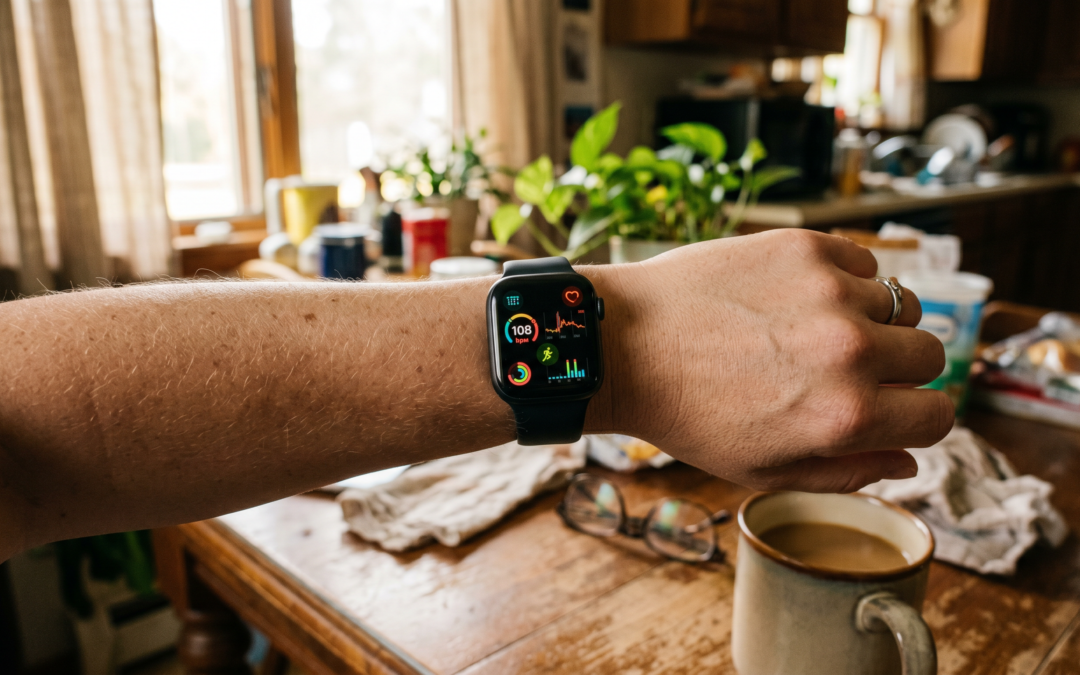
Apple Watch (Series 4 and later) was one of the first smartwatches to build fall detection into a mainstream device, and it remains one of the best implementations. It works on cellular models without your phone nearby, which matters. The tradeoff is the price point, and the fact that it works best within the Apple ecosystem.

Samsung Galaxy Watch series has comparable fall detection on its recent models, and works well with Android phones. Same basic functionality, similar limitations.

Both require a cellular plan (or being within range of a paired phone) to make emergency calls. If you’re often out of range of your phone, a cellular-capable model is worth the additional monthly cost.

A word about dedicated medical alert devices

Some people prefer a dedicated medical alert device over a smartwatch, and there are good reasons for that choice. Dedicated devices are simpler, often have better battery life, and are specifically designed for this purpose.

I’ve covered medical alert systems separately, including what to look for and which questions to ask before committing. If the smartwatch form factor doesn’t appeal to you, that article is a good place to start.

The main advantage a smartwatch offers over most dedicated devices is that it’s multifunctional enough that you’ll actually wear it, even if you resist wearing a device that feels clinical. A watch you wear every day because you like tracking your steps is also a fall detection device every time you put it on.

What to consider before buying

Battery life: most smartwatches need daily charging. If this is a problem, there are options in the dedicated medical alert space with much longer battery life.

The learning curve: a smartwatch has more features and requires more setup than a simple medical alert button. For someone who already uses a smartphone comfortably, it’s usually manageable. For someone who doesn’t, a simpler device might be a better fit.

Emergency contacts: whoever the watch is set to notify needs to understand what to do when they get the notification. Setting this up as a conversation before you need it is worth doing.

The bigger question

Fall detection is one tool in a larger picture. Staying strong and maintaining balance reduces the likelihood of falling. A safer home environment reduces the hazard level. A support network means someone notices sooner if something is wrong.

If you want to understand where you stand across all five areas of independence, including strength, home, and technology, the 3-minute assessment gives you a clear starting picture.

Take the 3-Minute Assessment

The watch won’t prevent you from falling. But it can make sure that if you do, you’re not alone.

Anne

Telehealth: The Healthcare Revolution That Most People Over 60 Are Still Not Using

Telehealth: The Healthcare Revolution That Most People Over 60 Are Still Not Using

I’m a lifelong tech person. I spent my career in IT. I am not intimidated by new tools.

And I still went nearly two years without using telehealth for anything, even after it became widely available.

Not because I couldn’t figure it out. Because I hadn’t thought carefully about when it made sense. I had a doctor I liked. I knew how to get to her office. Why change that?

Then I started actually paying attention to what telehealth can and can’t do. And I realized I’d been leaving a genuinely useful tool on the table.

What telehealth actually is

Telehealth means seeing your doctor, nurse practitioner, or other healthcare provider via video or phone instead of going to their office. That’s it.

You’re not seeing a random doctor somewhere. In most cases, you’re connecting with your own provider or someone in their practice. The visit is documented in your medical record the same way an in-person visit is.

Since the pandemic, the range of what can be handled remotely has expanded significantly. And Medicare now covers most telehealth services, which removed one of the main barriers for people over 65. As always, coverage details change, so check with your specific plan.

What can actually be handled remotely

This is where a lot of people are surprised, because the list is longer than most assume.

Follow-up visits after an in-person appointment can almost always be done by video. Reviewing lab results, checking in on how a medication is going, discussing a test result, these don’t require you to sit in a waiting room for forty-five minutes.

Mental health appointments are handled remotely with particular effectiveness. Many therapists and psychiatrists now do the majority of their sessions by video.

Prescription refills and medication management conversations often don’t require an in-person visit.

Checking in on a new symptom that isn’t urgent, not a chest pain or breathing emergency, but something you want to have looked at, is frequently manageable remotely. Your provider can assess it, decide if you need to come in, and save you the trip if you don’t.

Annual check-ins with specialists, when the specialist is reviewing records and talking through a chronic condition rather than performing an exam, can often be done by video.

What requires in-person care: anything that needs a physical examination, lab work, imaging, procedures of any kind. Telehealth is a supplement, not a replacement.

Why more people over 60 aren’t using it

I’ve asked this question in a lot of conversations. The answers tend to fall into a few categories.

“I don’t know how it works.” This is the most common one, and the most fixable. Your doctor’s office can walk you through it. Most systems take about five minutes to set up.

“I’m not sure my insurance covers it.” Coverage expanded significantly with the pandemic and has stayed broad for most plans. Calling your insurance company to ask specifically about telehealth coverage takes one phone call.

“I prefer seeing my doctor in person.” This is a completely valid preference for your primary care visits. You don’t have to replace in-person care. You can use telehealth for the visits that don’t actually need you to be there, and keep your in-person appointments for the ones that do.

“I’m not comfortable with video calls.” If you can do a FaceTime with family, you can do a telehealth visit. If you can’t, most providers also offer phone-only options. The technology is flexible.

How to set up your first visit

Start by calling your primary care office and asking whether they offer telehealth appointments and how to set up an account. Most practices use one of a handful of platforms (Zoom for Healthcare, Epic MyChart, Teladoc, and others) and their staff can walk you through it.

Before your first visit:

Find a quiet, well-lit place to sit. Your kitchen table works fine.

Test the technology fifteen minutes before the appointment. The platform usually has a test feature. If something isn’t working, call the office. They’re used to this.

Have your medication list nearby, the same one you’d bring to an in-person visit.

Write down the two or three things you want to address, because telehealth visits run to time the same way in-person ones do.

That’s it. The first one is the hardest, and “hard” means “slightly unfamiliar.” After that it’s just a different kind of appointment.

The real value over time

The way I think about telehealth now is as a way to stay in closer contact with my healthcare without the friction of getting there.

When getting to a doctor’s office requires planning, arranging a ride, taking time out of a day, people delay things they shouldn’t delay. A question that could be answered in a fifteen-minute video call becomes a thing they just live with. A medication that needs adjusting goes unadjusted.

Telehealth removes some of that friction. And for people who have difficulty with transportation, who live in rural areas, or who manage multiple chronic conditions and have frequent follow-up needs, it removes a significant amount.

The tool is there. It works. It’s covered by most insurance including Medicare. The main thing standing between most people and using it is just familiarity.

If you want to understand where technology fits into your overall independence plan, including what tools are genuinely worth exploring and what’s just noise, the 3-minute assessment gives you a clear picture across all five pillars.

Take the 3-Minute Assessment

I was late to this one. You don’t have to be.

Anne

Best Medical Alert Systems of 2026: An Honest Comparison (No Hype, No Sales Pressure)

Best Medical Alert Systems of 2026: An Honest Comparison (No Hype, No Sales Pressure)

If you search “best medical alert systems,” you will get a hundred articles that look like comparisons and are actually advertisements. Ranked lists where the number one pick is whoever paid the most. Editor’s scores nobody can explain. Countdown timers. A photograph of someone’s grandmother looking frightened.

This is not going to be that. I am not going to give you a fake ranking or a number I made up. I am going to tell you how these systems actually differ, what genuinely matters when you choose one, what is marketing noise, the exact questions to ask before you sign anything, the company I would start with, and the famous name I would steer you away from, plainly and with reasons.

One thing first, plainly. I have not yet entered any affiliate relationships in this category, which means as I write this I make nothing on any link in this article, period. When that changes, I will tell you in writing, at the top of the page and next to the specific link, every single time. The promise is that I will say honest things about the companies here whether or not I earn from any of them, and I will tell you plainly when something in this industry is not worth your money. That promise has to hold either way. If it ever stops, the article is not worth reading anyway.

First, an honest question: do you actually need one yet?

Not everyone reading this needs a medical alert today, and the honest articles say so.

A medical alert earns its place if you live alone, or are alone for stretches of the day, or have had a fall, or have a condition that could leave you suddenly unable to get to a phone. It also earns its place when the person who would worry most is not you but the people who love you, and the device buys everyone some peace. That is a real reason, not a lesser one.

I wrote about being skeptical of this whole category, and I want to bring the same honesty here. This is not about admitting you are old. It is the same logic as a smoke detector. You install it precisely because you do not expect a fire, and you would rather have it doing nothing on the wall for ten years than need it once and not have it. It is infrastructure, the same as a grab bar or the folder of documents. You hope it stays boring.

If none of that describes your life right now, it is reasonable to bookmark this and come back. If some of it does, keep reading.

The four kinds, in plain language

Almost every product on the market is a version of one of these four. Get the category right first; the brand comes after.

1. In-home system, landline. A base unit plugs into your home phone line, with a wearable button. You press it, the base unit calls a monitoring center, you talk through the base unit’s speaker. The cheapest option. The honest downsides: it only works inside the home and within range of the base, and it needs a landline, which fewer people keep every year.

2. In-home system, cellular. Same idea, but the base unit uses a cellular signal instead of a landline, so no phone line is needed. Still only works at home and within range of the base. Good for someone who is mostly home and has dropped their landline.

3. Mobile system with GPS. A small unit you carry or wear that works anywhere there is cell coverage, using GPS so the monitoring center can locate you if you cannot say where you are. This is the one for a person who still drives, walks, gardens, leaves the house. The honest downside: it depends on cell coverage and needs more regular charging than a simple home pendant.

4. Wearable, watch or pendant style, often with optional fall detection. A device worn like a watch or necklace, usually mobile and GPS-enabled, sometimes blending in enough that people will actually wear it, which matters more than any spec. Fall detection is usually an add-on here and on the mobile units.

A word on fall detection, because the ads oversell it. It is sensors that try to detect a fall and call for help even if you do not or cannot press the button. It is genuinely useful for the right person. It is also not perfect. It can miss some falls and it can false-trigger on things that are not falls, and it typically costs extra per month. It is worth having for many people. It is not the magic guarantee the commercials imply, and any company that tells you it catches every fall is selling, not informing. One of the famous names in this category, as a matter of fact, does not even offer fall detection because they say the false-alarm rate is too high. There is some truth in that and there is also some convenience for them in saying it. More on that name in a minute.

What actually matters (and what is just noise)

Here is where the honest comparison really lives. Not in a spec table. In knowing what to weigh.

The monitoring center is the product. When you press that button, a person answers. Everything else is packaging around that moment. Ask whether the monitoring center is based in the United States, whether its operators are certified, and whether it is staffed every hour of every day. Two of the certifications to look for are UL-Listed (the safety standard) and CSAA Five Diamond (an industry monitoring-center quality mark). They are not a guarantee of anything, but their absence is a signal.

The total cost, not the headline cost. The monthly price in the ad is rarely the real number. Ask about equipment cost, activation fees, the price of adding fall detection, and what the price becomes after any introductory rate ends. Get the all-in first-year figure in writing.

The contract and the exit. This is where the worst of the industry lives. Ask if it is month-to-month or a long contract, whether there is a cancellation fee, and whether you get a refund if it does not work out in the first month. A company that makes leaving hard is telling you something about how it sees you.

Whether it works where you fall. A device that is not waterproof and lives on the bathroom counter is useless, because the bathroom is where the bad ones happen. It has to be something worn in the shower. Range and battery life matter for the same reason: the system only helps if it is on you and working at the moment it is needed.

Whether the person will actually wear it. The most advanced system in a drawer protects no one. Comfort, weight, and whether it looks like something a person is willing to have on their body all day are not minor details. They are the whole thing.

The noise, by contrast: lifetime price-lock promises, limited-time discounts that are never actually limited, celebrity spokespeople, and any advertisement built on making you afraid. None of that tells you whether the center answers fast and the device gets worn.

The questions to ask before you sign anything

Print these. Take them to every sales call. A good company answers all of them without dancing.

  • Is this month-to-month, or is there a contract? How long?
  • What is the total cost for the first year, including equipment, activation, and fall detection?
  • What is the cancellation policy? Is there a refund if it does not work out in the first 30 days?
  • Where is the monitoring center? Are the operators certified, and is the center UL-Listed and CSAA Five Diamond?
  • What happens during a power outage or internet outage? How long does the backup battery last?
  • Is fall detection included or extra, and what are its honest limitations?
  • Can a spouse or second person in the household be covered, and at what cost?
  • Is the wearable waterproof, so it can be worn in the shower?
  • What is the battery life, and how is it charged or replaced?

If a salesperson is vague on cost, contract, or cancellation, that is your answer. Move on.

The provider I would start with

If you want one name to begin with, on the merits, mine is Bay Alarm Medical.

Independent reviewers including PC Mag, NCOA, SafeHome.org, and The Senior List have ranked Bay Alarm at or near the top of the category for 2026, and the reasons they cite are the reasons that matter under the framework above. The monitoring centers are US-based, located in Utah and Idaho, and carry both UL-Listed and CSAA Five Diamond certifications. The plans are month-to-month with no long-term contracts and no activation fees, and there is a 15-day risk-free trial, which is the right way to learn whether a device fits your life. They offer the full range of categories described earlier, from a simple in-home landline unit to mobile GPS wearables and a smartwatch-style option, with fall detection available as an add-on rather than a quietly required upcharge.

I am not telling you it is the only good option. I am telling you it is the one that does not require you to compromise on any of the things the framework above says actually matter, and that makes it the cleanest place to begin your two-or-three-quote comparison.

Bay Alarm Medical — current pricing

Verified May 2026. Pricing changes; always confirm directly with the company before signing up.

  • In-home landline (SOS Home): $27.95 per month
  • In-home cellular (SOS Home Cellular, 4G LTE): $34.95 per month
  • Mobile and smartwatch options: additional plans available; pricing varies by configuration. Get a current quote.
  • Fall detection add-on (any plan): $10 per month
  • No long-term contracts, no activation fees, 15-day risk-free trial

Source: Bay Alarm Medical (bayalarmmedical.com), confirmed May 2026.

Another established name worth a quote

Medical Guardian is another major national provider with the full range of in-home and mobile options, including a smartwatch product. Reviews vary, and that is honest to say. It is worth getting a quote from them alongside Bay Alarm, running both through the questions list, and choosing on the answers rather than the brand recognition.

One naming-confusion warning, for your protection

There are two similarly named companies and they are not the same business. MedicalAlert.com (operated by Connect America) is one. Medical Care Alert (medicalcarealert.com) is a different, smaller company. Both are real, both are reputable, but if you call one and quote a price you saw for the other, the conversation will go sideways. When you compare quotes, write the full URL or the parent company next to each, not just the words “Medical Alert.”

About the famous one, plainly

I want to talk about Life Alert specifically, because it is almost certainly the name that came to mind when you started reading this. The “I’ve fallen and I can’t get up” commercials are decades old at this point. The brand is real. The monitoring center is real. It is not a scam company, and I do not want anyone to come away thinking that is what I am saying.

But Life Alert is not on my shortlist, and I want to tell you exactly why, with reasons.

Independent reviewers consistently report that Life Alert costs meaningfully more than comparable competitors and requires a three-year contract that is genuinely hard to cancel outside of specific circumstances. The company does not offer fall detection at all; their position is that the technology produces too many false alarms, which is partly true and partly a convenient thing for the only major national brand without fall detection to say. Independent comparison testing has reported their response times as slower than the industry average. They also do not sell online. All purchases go through a phone call, which is fine in principle, but in practice that sales process tends to be the part of the buying experience people describe least warmly.

None of that makes them disreputable. It makes them the company I would tell my own family to compare against, not the one to start with. If your shortlist is Bay Alarm and one other, and Life Alert’s quote comes in higher, on a longer contract, without fall detection, the comparison answers itself.

One more thing, and this is the part I want to say plainly so you can weigh it. Life Alert does not run an affiliate program. They sell only by phone, not online, and there is no commission model for outside writers to begin with. I earn nothing whether you choose Life Alert or you do not. The companies I have flagged as worth a quote, I may eventually earn from. The famous one I have just told you to look hardest at, I will not. Read accordingly.

What I would personally weigh

I am not going to tell you what to buy, because the right answer depends on your life, not mine. But since people always ask what I would do:

If I lived alone, I would care most about three things, in this order. A wearable I would genuinely keep on, including in the shower. Month-to-month terms so I was never trapped. And a monitoring center I had confirmed was US-based and certified. I would add fall detection, knowing it is imperfect, because imperfect help for a fall I cannot call about is still better than none. The lowest price would not be my deciding factor, and the loudest advertisement would not even make my list.

That is a way of thinking, not a recommendation. Bring your own life to it.

Where to go from here

If you have read this far, you are doing the thing most people do not, which is choosing on purpose instead of buying whatever ad reached you on a bad week.

Take the questions list. Get two or three real quotes, starting with Bay Alarm. Decide the way you would decide anything that matters, with the numbers in front of you and the pressure turned off. And if it helps to see where this fits among the other parts of staying in your home, the rest of the technology pillar goes deeper, and the Independence Assessment scores you across all five pillars in three minutes and tells you which one needs you first.

Take the 3-Minute Assessment

A medical alert is not a verdict on how old you are. It is a smoke detector for a different kind of emergency. Choose it the same way: calmly, before you need it, and then mostly forget it is there.

I’m glad you’re here.

Anne